


It is now possible to use the Chaos Cloud feature to submit V-Ray renders to their servers for rendering. This is a really useful feature which means V-Ray scenes created in Rhino / 3DS Max / Blender / Sketchup etc. can be remotely rendered, freeing up your machine to carry on working – and processing renders more quickly due to their powerful rendering hardware. Also you can queue up a series of renders to send off one after the other.
This guide describes the process for Rhino – but the different softwares work in fairly similar ways
Please Bear in Mind:
Cloud credits are shared. At present, all students draw from a single pooled allocation of Chaos Cloud credits. Everyone is therefore sharing the same resource, so please be considerate of other users.
- Credits renew periodically. The available credit allocation is replenished periodically. Please don’t assume there is an unlimited supply available at any given time.
- Choose your resolution carefully. Higher-resolution renders consume more resources and credits. As a general guide:
- 1280 × 720 – Drafts and previews.
- 1920 × 1080 – Standard final renders.
- 2560 × 1440 – Higher-quality presentation renders.
- Don’t render bigger than you need. A 4K or exceptionally large image isn’t automatically a better image. Consider where and how your work will be presented before choosing your output resolution.
- Use local rendering for smaller tests. There’s little benefit in using cloud credits for small test renders while you’re experimenting with lighting, materials, cameras and composition. Your local workstation is perfectly suitable for this.
- Save cloud rendering for the bigger jobs. Chaos Cloud is particularly useful for larger, more demanding final renders, where you want to free up your workstation or render at higher quality without tying up your machine.
- Think before submitting. Check your camera, materials, lighting, output dimensions and render settings before committing credits. An unnecessary re-render uses resources that could be better spent elsewhere.
Custom materials and external assets: Some custom, procedural or third-party materials may not be supported by Chaos Cloud, even if they work perfectly on your local machine. External textures and image files must also be included with the scene. In some cases, materials may need to be converted or baked into bitmap textures before they can be rendered successfully in the cloud. If materials are not rendering correctly it can be quite difficult to trace the problem.
1. Chaos Cloud
As well as V-Ray itself being installed you also need have Chaos Cloud installed.
On your own PC it will likely have been installed on first run – if not then download and install from the Chaos Cloud Site
On a Uni PC: you need to install it via Software Centre before you start Rhino. Click to install Vray Chaos Cloud from Software Centre
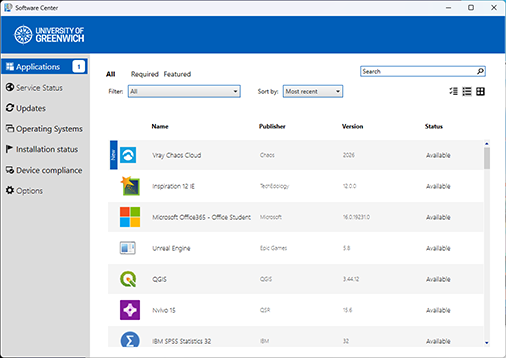
note: this installs it for your session, you may have to install it again if you log out and log in again
2. In Rhino
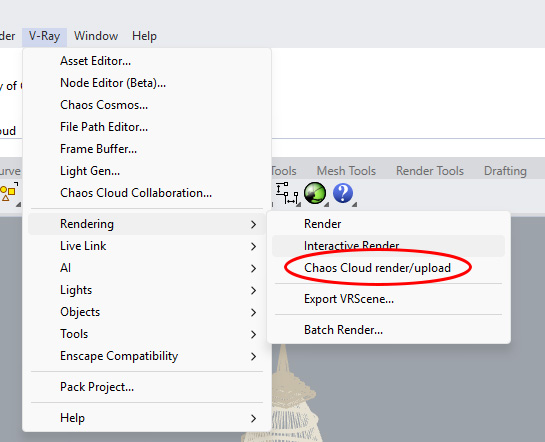
When you have your scene ready to render in Rhino select V-Ray – Rendering – Chaos Cloud render / upload
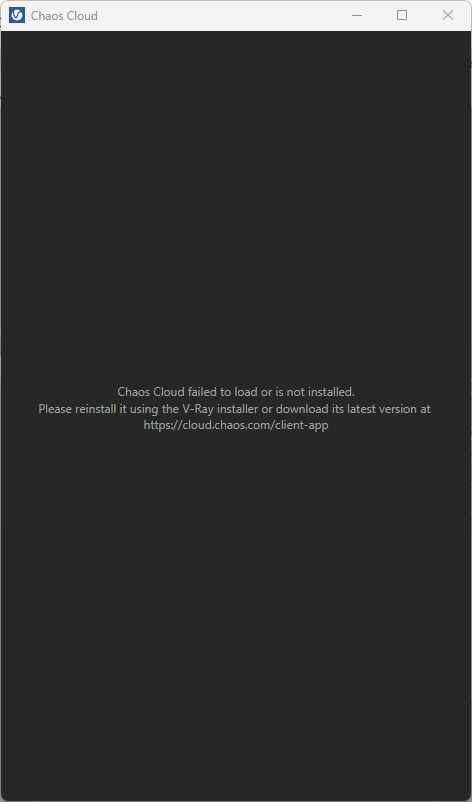
If you get this message saying Chaos Cloud failed to load then go back to [1] and reinstall the Chaos Cloud App
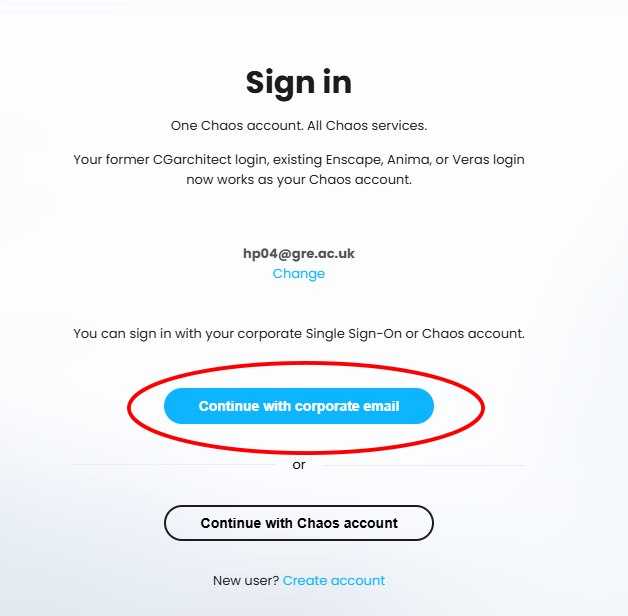
If you have not already logged into the Chaos website then you will be prompted to do so – submit your short user ID credentials; e.g. ab123@gre.ac.uk the choose the option Continue with corporate email. You may also have to do the MFA authentication at this point.
3. Submit Job
The Chaos Cloud dialogue box will list the properties of your render – these defined by the render settings in the V-Ray asset viewer. The Credits section indicates remaining credit which – currently – is shared between all users; this may change to an individual allocation to each student.
Since all the assets are being transmitted to the remote server a large job may take some time to upload.
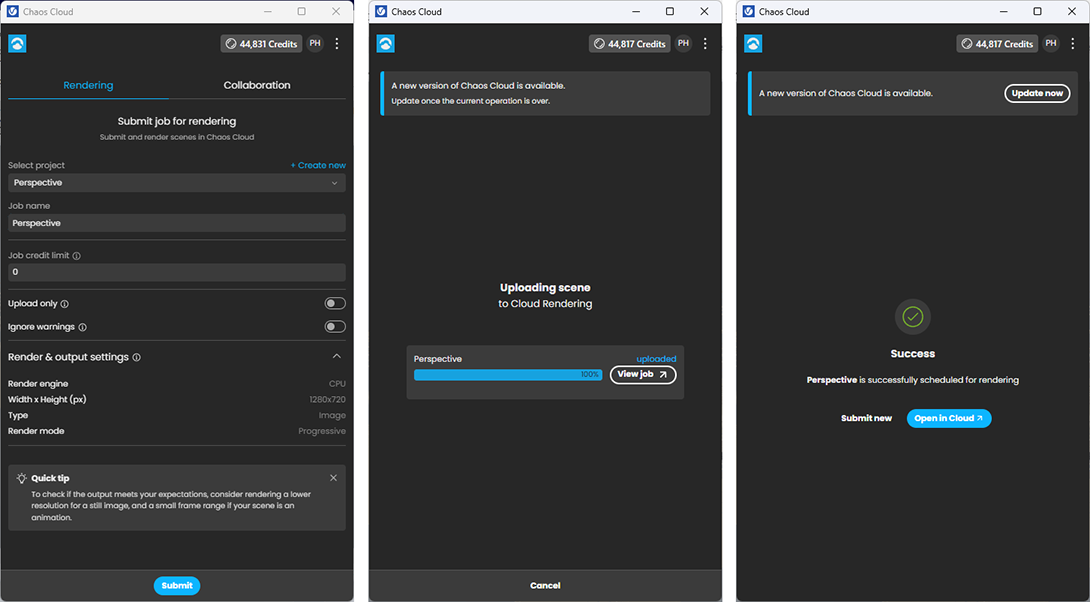
Clicking View Job / Open in Cloud will open the web view into your renders – you can monitor the progress of renders and once they have finished you can download for post processing in Photoshop etc. You will also get email notifications of job submissions and completions.
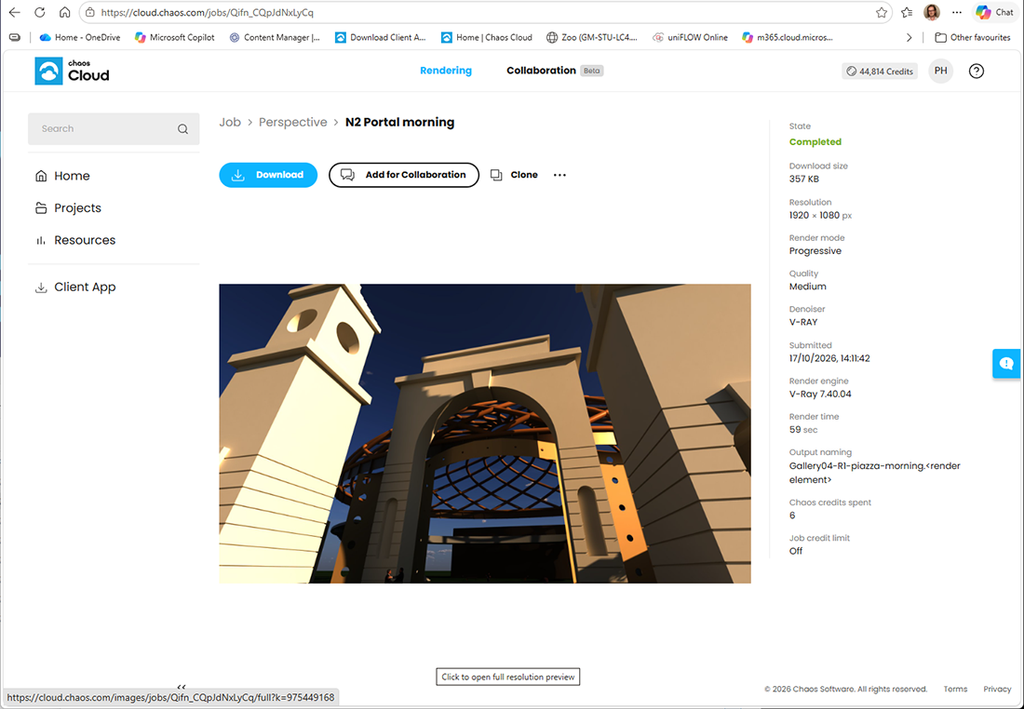
You have the option to organise / view all the jobs you have sent. Also note the CLONE option – this allows you to resubmit previous jobs with different render settings.