[Note friday 30th October 2026: this product is currently being rolled out to certain programmes one at a time. At this point it is available to MAArch students]
Chaos V-Ray is a powerful rendering plugin for a number of applications including Rhino, 3D Studio Max, Sketchup, Blender, etc. It can transform 3D models into high-quality images and animations, simulating realistic lighting, materials, reflections and environments.
Enscape is a similar but runs as a real time visualiser and is more tuned to architecture / landscape architecture projects.
This software is available on all the Design School workstations and is also available for students to download on their own machines. Note that it is quite demanding software and needs a decent specification PC or Mac – though for final renders you also now have the option to submit jobs to the Chaos Cloud remote rendering service.
To install the software sign in with your short user ID – e.g. ab123 – at the Chaos Website and choose Continue with Corporate email then authenticate via the Uni MFA system

Once logged in:
- Click your icon in the top right hand corner a
- choose My Products
- Select Show Individual Products
- select Download beside 1Year V-Ray Education – University
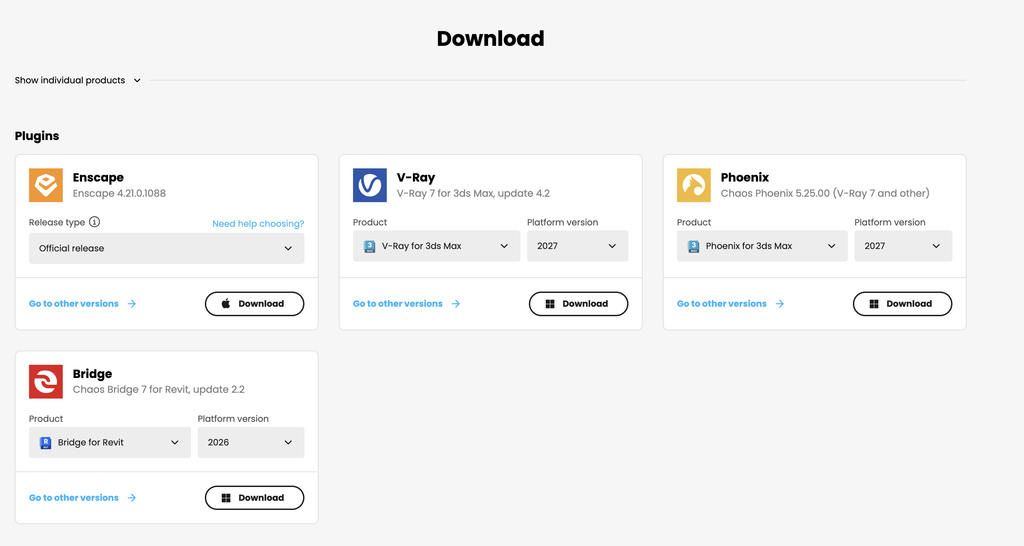
For either Enscape or V-Ray choose from the dropdown which application you want it for. Note not all the software works on both Mac and PC, for instance there is no Vray for Rhino on a Mac, but Enscape for Rhino Mac is available.
Once downloaded then follow the install process for your machines / software. Choose cloud licensing when prompted – and if prompted then login with short userID and password / continue with corporate account again.
Once the software is installed then launch your modelling software again – you may be warned that there is a new plugin installed – then invoke it according to your software. e,g
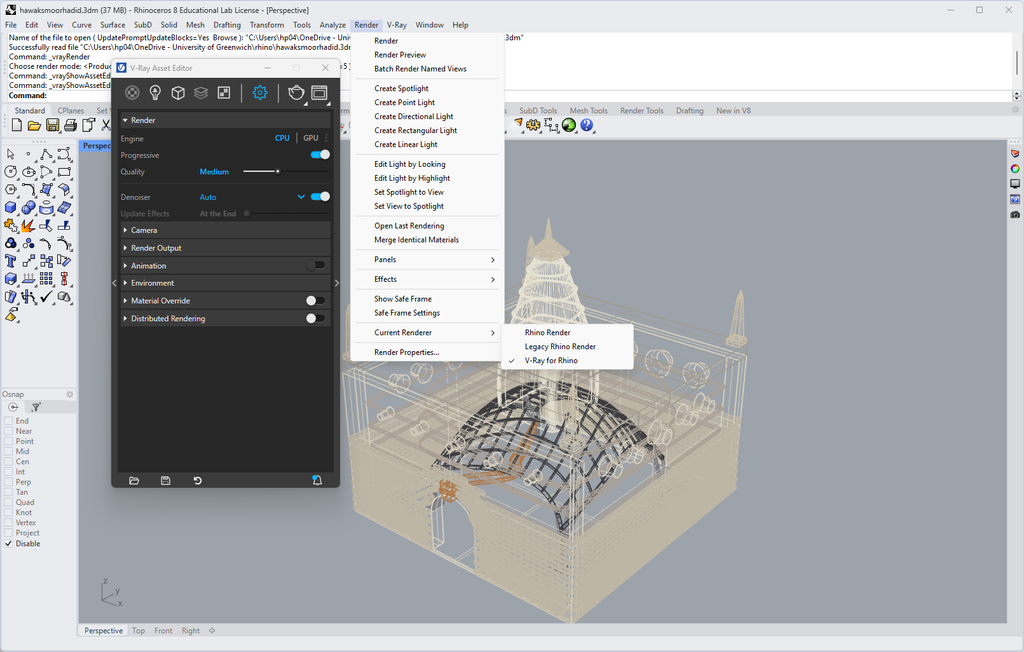
- Rhino:
Render – Current Renderer – V-Ray for Rhino
V-Ray – Asset Editor
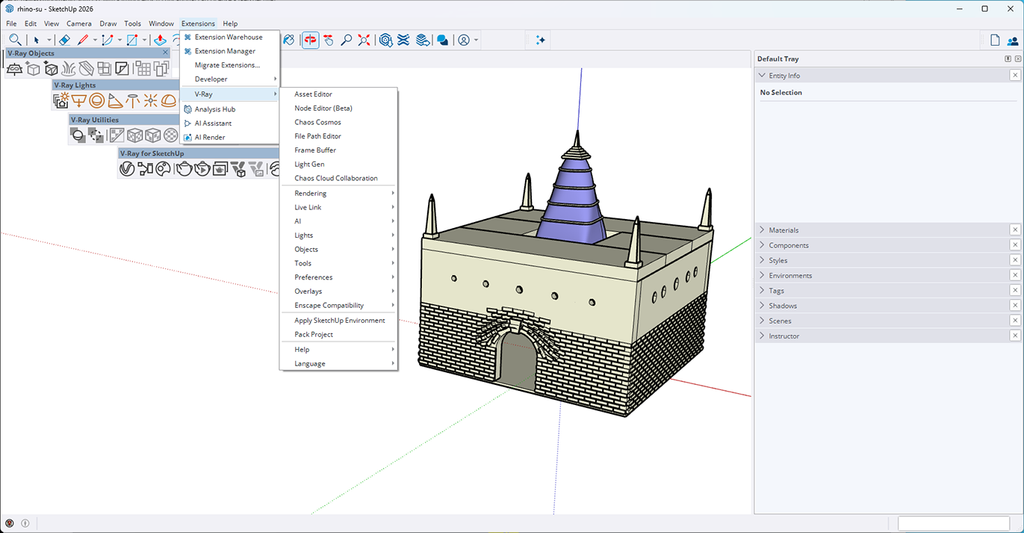
- Sketchup
On launching Sketchup you will see a new V-Ray toolbar
Or Extensions – V-Ray to go straight to the commands
- Blender
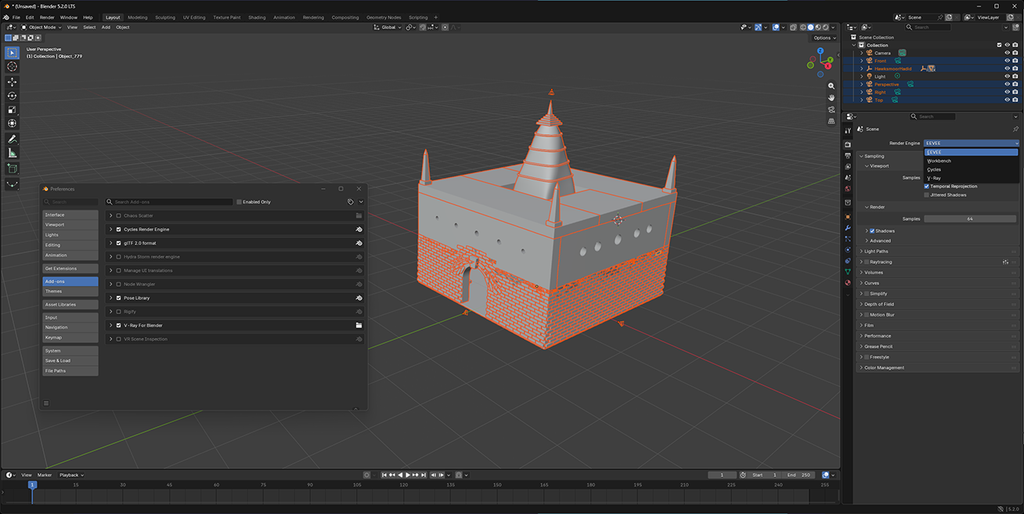
Edit – Preferences – Addons: click to Enable V-Ray for Blender
In Render properties – select the Render Engine dropdown and choose V-Ray